Dashboard overview
Caches and dashboard navigation.
This page maps the dashboard UI: where caches appear, what each workspace item does, and where per-cache settings live. For the reasoning behind how content is organized (databases, inbox, links), see the Second Brain page.
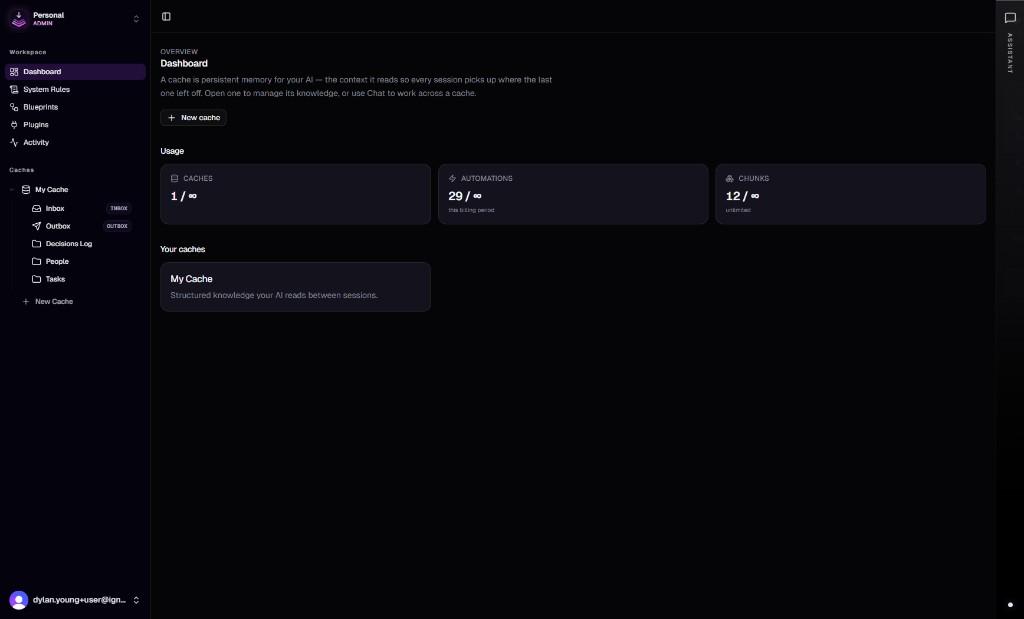
Sidebar: team and two zones
The left rail is always visible on desktop and collapses to icons on smaller layouts. At the top, the team switcher chooses which team's caches you are viewing.
Below the team switcher, navigation splits into Workspace (team-wide tools) and Caches (each memory space and its structure).
Workspace
- Dashboard (
/dashboard) — the home page, with a short explanation of caches and entry points to open or create one. - System Rules (
/dashboard/rules) — rules applied to the product's own in-app chat on web and mobile. Custom rules plus built-in context. External MCP clients use their own setup. - Blueprints (
/dashboard/blueprints) — browse and manage blueprint definitions for the workspace. - Plugins (
/dashboard/plugins) — the integration catalog and connection flows. Legacy "Connections" URLs redirect here so OAuth callbacks stay stable. - Activity (
/dashboard/activity) — recent workspace activity.
Admin (tenant admins only): user and team management, plus plan-related screens.
Caches list and structure
Under Caches, each cache is a row with your chosen name. Click the cache to open its home at /dashboard/caches/[cacheId].
When a cache is selected (and by default for the first cache in the list), the sidebar expands to show:
- Settings — jumps to
/dashboard/caches/[cacheId]/settings. See the Cache settings section below. - Structure — a tree of root-level items: Inbox, databases, and top-level chunks. Rows under a database appear nested. Choosing an item opens its detail in the main panel.
Use New Cache at the bottom of the list to create another cache, within your plan limit (/dashboard/caches/new).
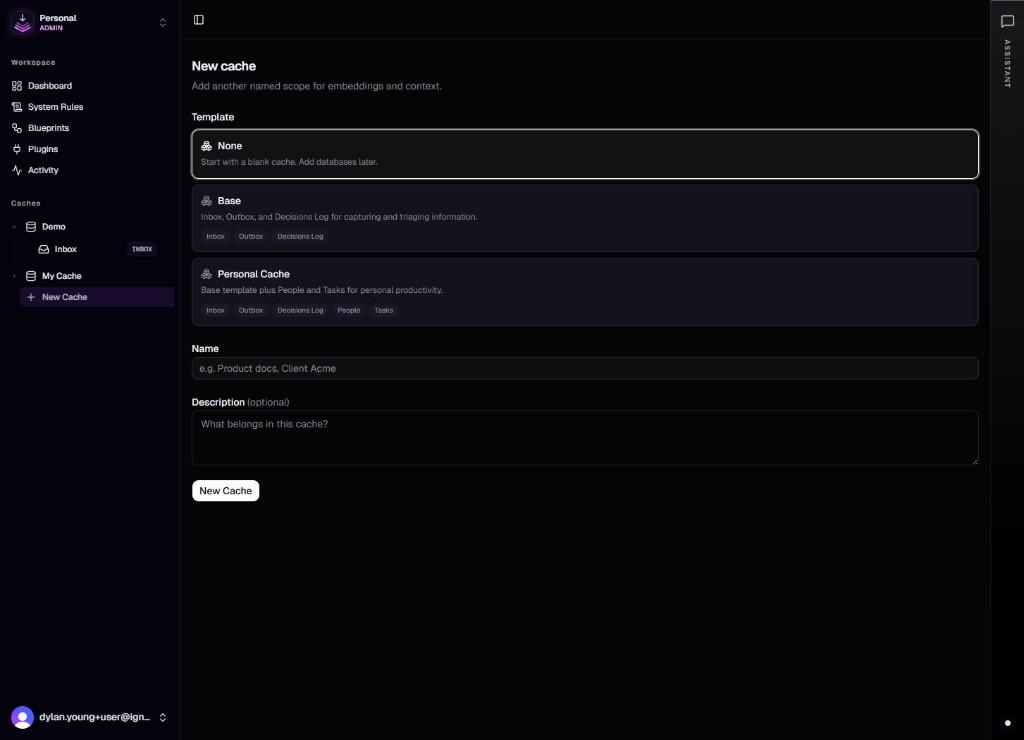
Cache home
The main area for a cache starts with an Overview: counts (total chunks, root items, outbound links, inbox pending), a chunks over time chart, a chunks by kind breakdown, and usage against your plan limits. This is the fastest way to see whether content is landing and how the Inbox backlog looks.
The header shows the cache name and description, along with a control to delete the cache when you need to remove it entirely.
Cache settings
Cache settings covers identity and AI defaults for this cache only:
- System instructions — standing instructions for any AI work against this cache: tone, priorities, and facts the assistant should treat as context. This is separate from workspace System Rules, which govern the product's own chat.
- Hook API keys — scoped tokens that let external systems read or write to this cache. See Hook API.
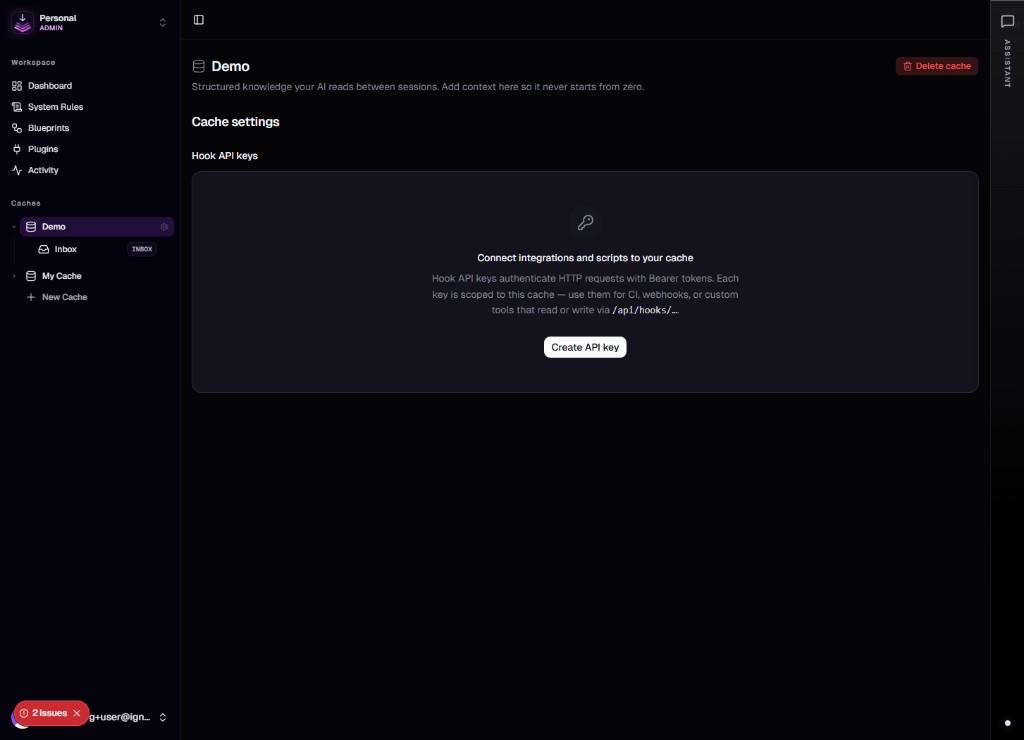
Current layout
Today, Structure in the sidebar is the primary way to move between Inbox, databases, and documents. Bulk moves, saved views, and richer board or table layouts are on the roadmap and will be documented here as they ship.
For the conceptual model behind the layout, see the Second Brain page.